
Procore
Upload completed SafetyCulture inspection reports to the right Procore project and keep site records in one place.
Description
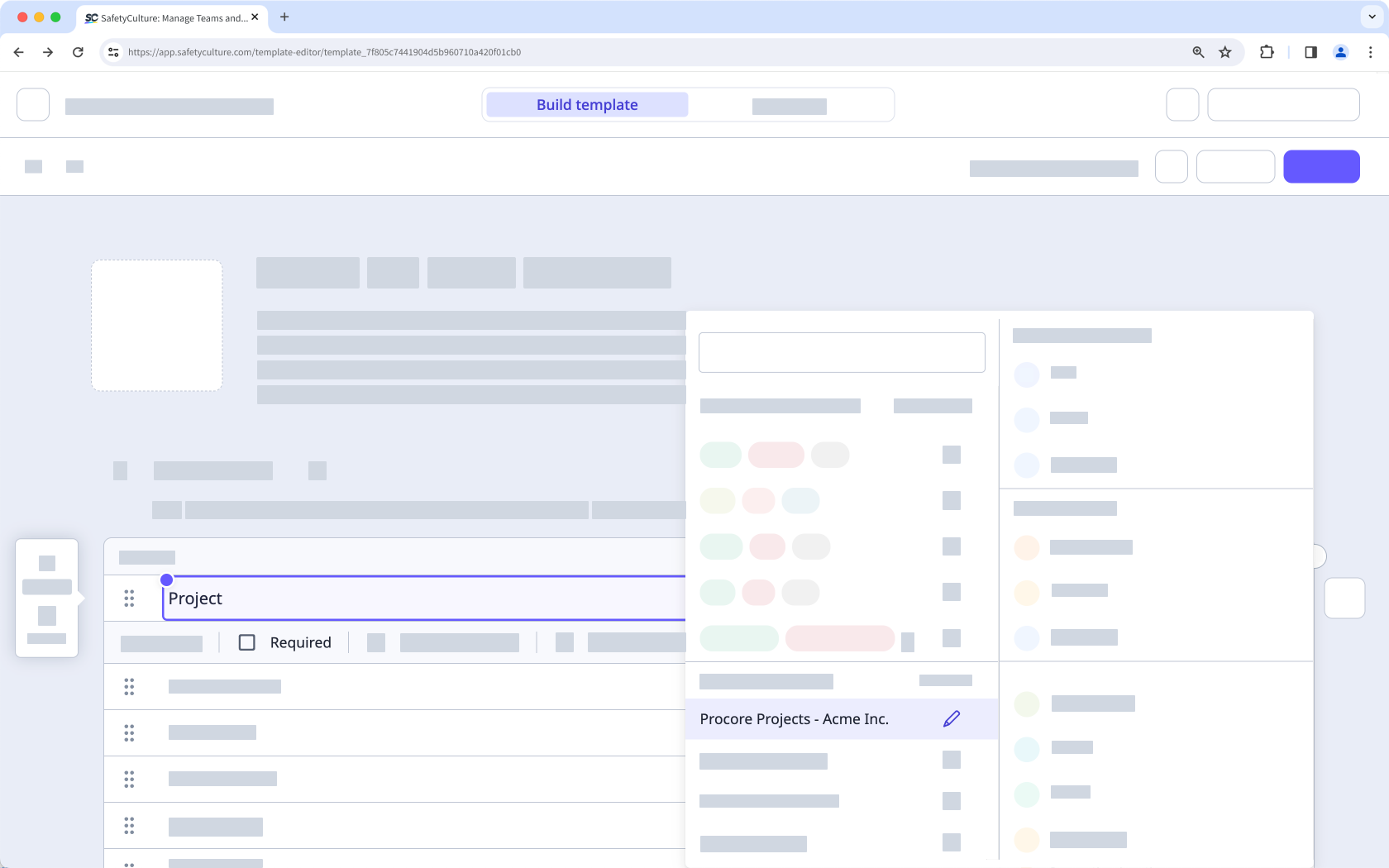
Connect SafetyCulture to Procore to automatically upload completed inspection reports as PDFs to the correct Procore project. Use a Procore Projects Global Response Set in your templates so inspectors can select the relevant project while completing an inspection.
How it works
- SafetyCulture syncs your Procore projects into a Global Response Set called Procore Projects.
- When an inspection is completed and includes a response from the Procore Projects Global Response Set, SafetyCulture uploads the inspection report PDF to the selected project’s Documents tool.
- Procore creates a SafetyCulture Inspections folder so teams can find uploaded reports quickly. If you already had iAuditor Inspections from older setups, Procore may keep using that folder.
📘 This integration only uploads inspections you complete after setup. It does not upload inspections completed before you connected the integration.
✔️ SafetyCulture Premium Plan or Enterprise Plan
✔️ Web app
✔️ "Platform management: Organization" permission
✔️ Full seat
✔️ Procore account with the Company level Admin permission
✔️ "Conduct, edit" template access level at a minimum
✔️ Third-party cookies enabled
Requirements
✔️ SafetyCulture Premium Plan or Enterprise Plan
✔️ Web app
✔️ "Platform management: Organization" permission
✔️ Full seat
✔️ Procore account with the Company level Admin permission
✔️ "Conduct, edit" template access level at a minimum
✔️ Third-party cookies enabled
Media
FAQ
In November 2022, we renamed "iAuditor" as "SafetyCulture". As part of this rename, we also updated the various references of "iAuditor" including the Procore integration, so that any new setups will use "SafetyCulture Inspections" instead. However, to minimize disruption to existing setups, we decided to continue exporting inspection reports to your existing "iAuditor Inspections" folders.
If you want to align the name of your folders for consistency, you can rename your "iAuditor Inspections" folders as "SafetyCulture Inspections".
If you get a connection error while installing the integration, it's likely because your browser is blocking third-party cookies on SafetyCulture websites. To fix this, we recommend that you turn on third-party cookies in your browser settings and try installing the integration again.