
Google Drive
Automatically export completed SafetyCulture inspection reports to Google Drive folders.
Description
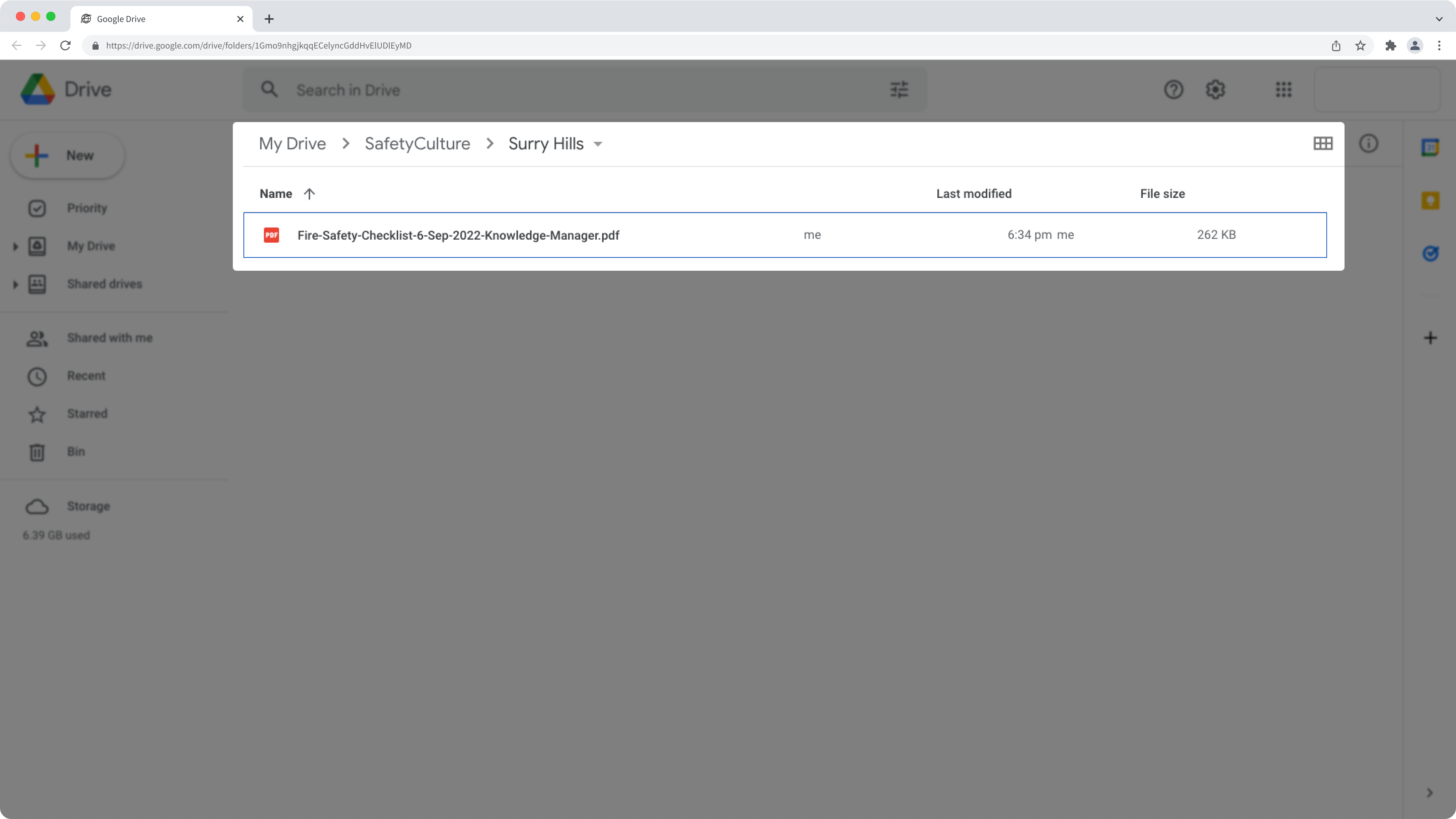
Connect SafetyCulture to Google Drive to automatically export completed inspection reports into a folder you choose. Use Google Drive search, sharing, and access controls to manage reports in one place.
SafetyCulture exports reports based on the inspections that the person who installs the integration can access. Admins can expand coverage by giving themselves template access or using the "Override permissions: View all data" permission.
📘 This integration does not export inspections completed before setup.
2. Connect Google Drive (OAuth 2.0 or service account).
3. Select a folder location in Google Drive where SafetyCulture will export reports.
SafetyCulture exports reports based on the inspections that the person who installs the integration can access. Admins can expand coverage by giving themselves template access or using the "Override permissions: View all data" permission.
📘 This integration does not export inspections completed before setup.
How it works
1. Install the integration in the SafetyCulture web app.2. Connect Google Drive (OAuth 2.0 or service account).
3. Select a folder location in Google Drive where SafetyCulture will export reports.
If you want to export inspection reports to a shared drive, you'll need the "Contributor" access level to the drive at a minimum.
Requirements
Media
FAQ
No, it's not possible to change the folder structure using this direct integration. However, our SafetyCulture Integration Builder can give you the flexibility to customize integrations in whatever way that works for you.
The integration may have been turned off due to an authentication error. Either because the external account used for the integration no longer has access to the system or its permissions to make changes have been removed.
When this happens, an email would be sent to users with the "Platform management: Organization" permission to inform them about the error. To fix the problem, we recommend that you uninstall the integration and follow the instructions to install it again.
If you get a connection error while installing the integration, it's likely because your browser is blocking third-party cookies on SafetyCulture websites. To fix this, we recommend that you turn on third-party cookies in your browser settings and try installing the integration again.